Pindicate
For small creative teams

Client feedback your whole studio can work from.

Studios and small agencies use Pindicate to collect client notes on designs, videos, PDFs and websites. Pull in the right person with an @mention, keep every round on the same link, and get the sign-off in writing. One flat price, not per seat.

Try it freeOr drop a file in the upload box to try it, no account needed.

Drop a file here

VideoImagePDFURL

Free. No signup. Link ready in about 10 seconds.
Your clients never need an account. Delete it anytime.

Watch a real review, start to finish.

Upload a design, send one link, and the client pins exactly what they want changed. About a minute.

How small teams run client reviews in Pindicate

One library

A folder per client, and you can see what's new

Every review lives in one library. Group them by client, sort by newest, or show only the ones with unread comments, so nothing sits unanswered.

  1. Make a folder for each client or project.
  2. See new-comment counts on every review at a glance.
  3. Spot approved work by its badge, right in the list.
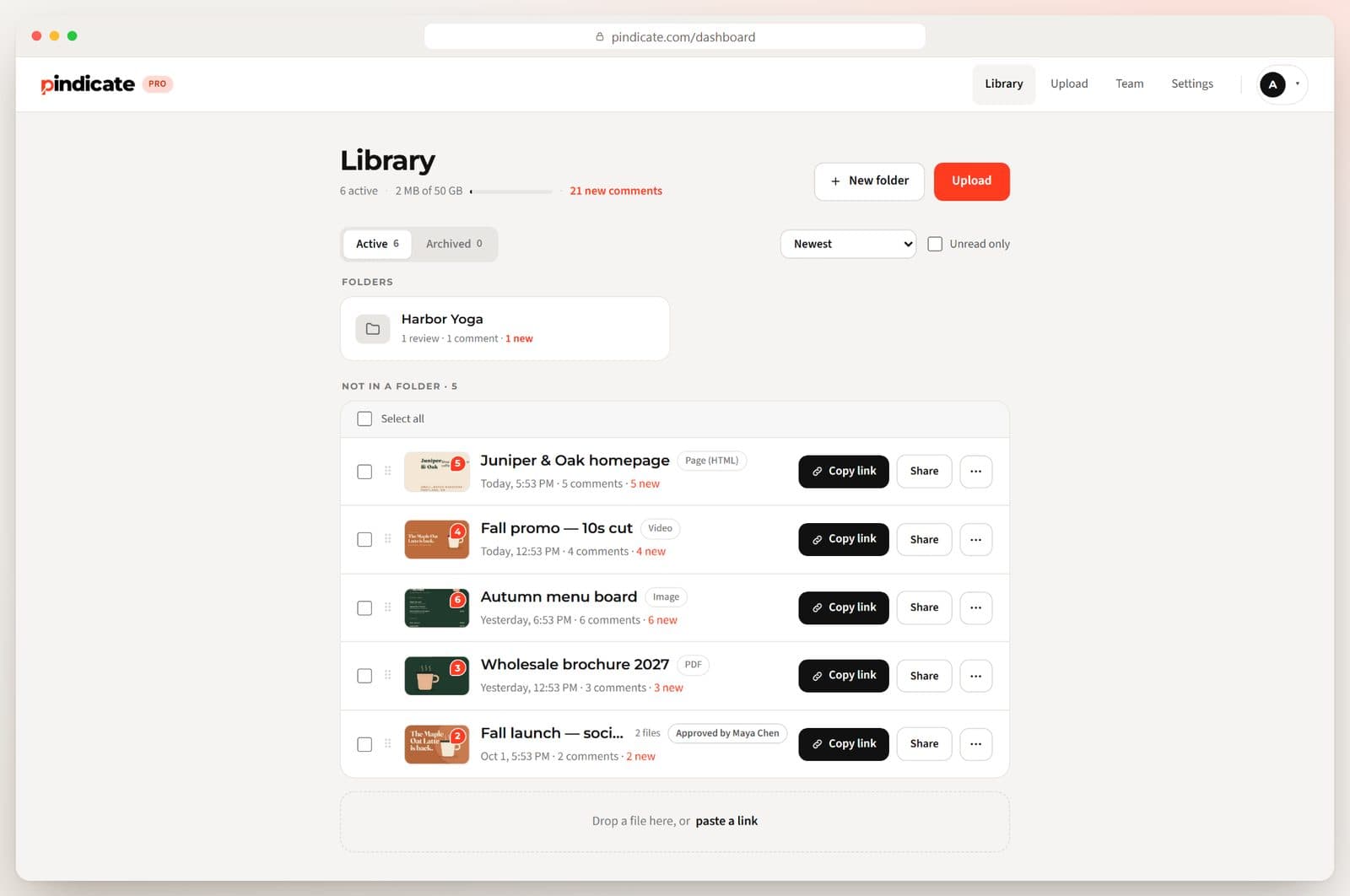
The library: a client folder, reviews with new-comment counts, and an Approved by Maya Chen badge
Campaigns

A whole campaign in one link

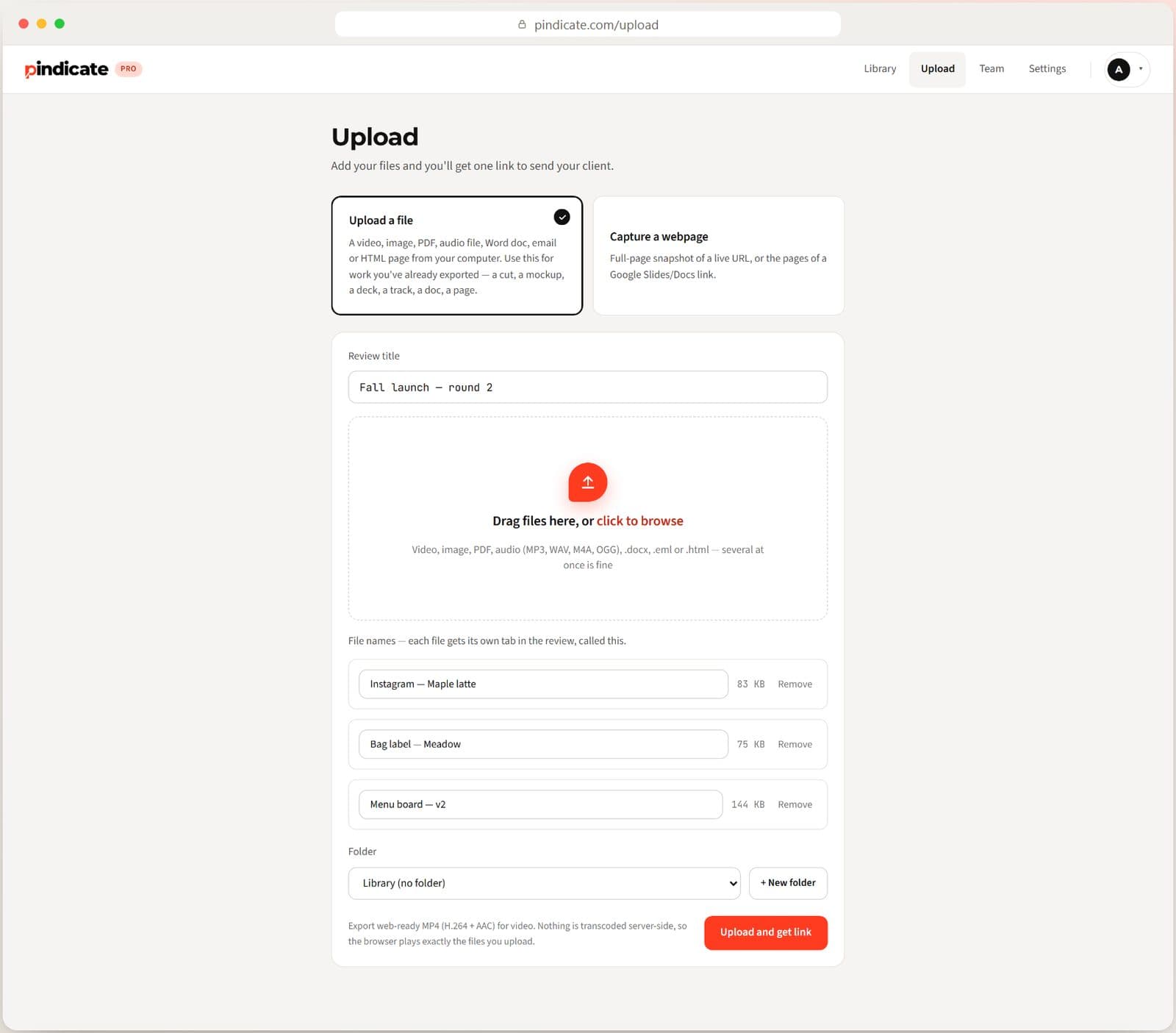
Upload the social post, the packaging and the menu board together, and name each file. Your client gets one link and moves between files with the arrow keys.

  1. Drop in every file for the round at once.
  2. Name each one so the client knows what they're looking at.
  3. One link, one place for the whole round of notes.
The upload screen for Fall launch round 2, with three files named Instagram Maple latte, Bag label Meadow, and Menu board v2
Your team

Pull in the right teammate with an @mention

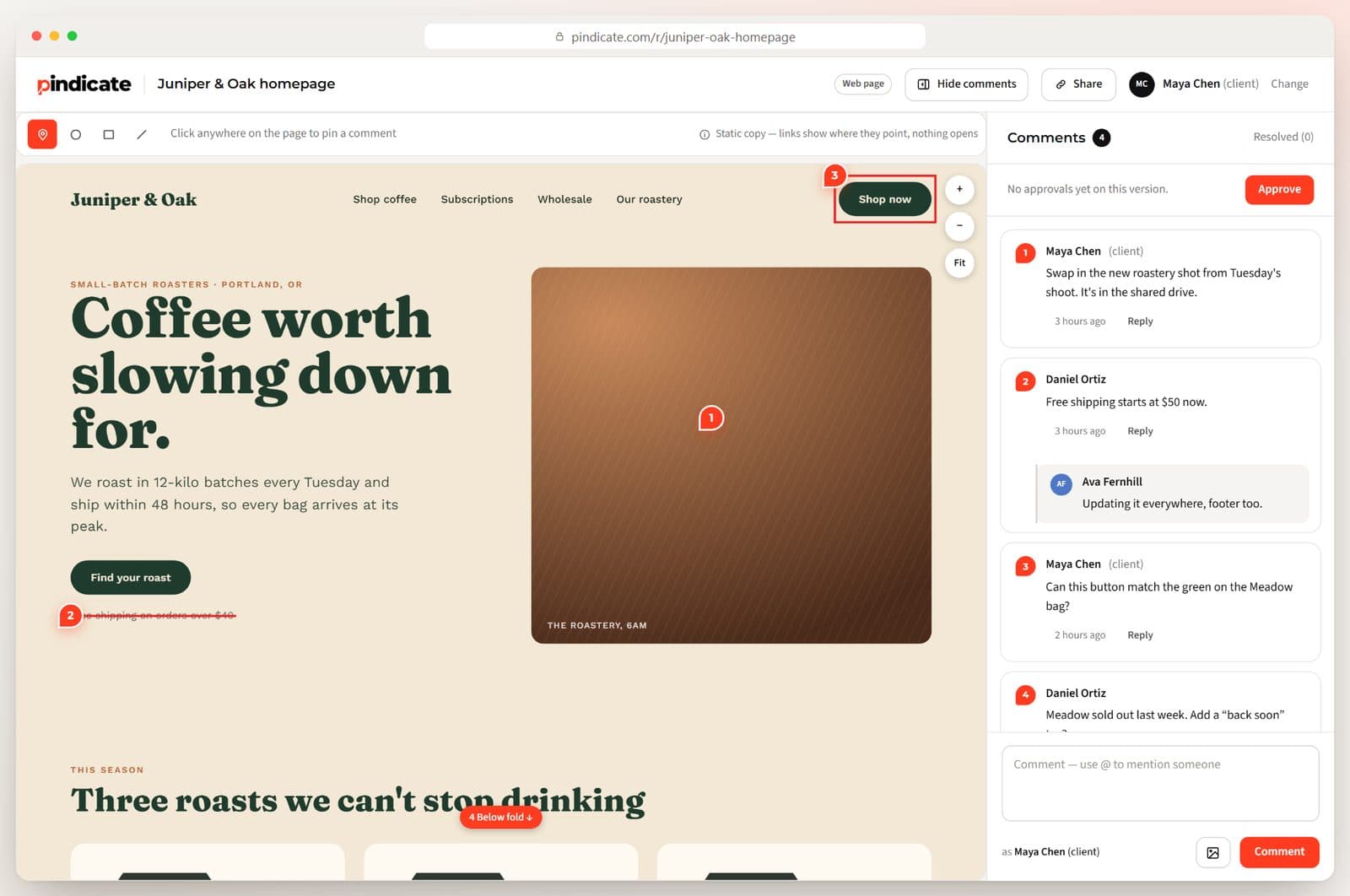
Add your designers, editors and developers to your Team list. Mention someone in a comment and they get an email that opens the review. When anyone replies, everyone in that thread hears about it.

  1. Add teammates once, on the Team page.
  2. Type @ and their name in any comment to bring them in.
  3. They reply right under the client's note.
A website review where a teammate, Ava Fernhill, replies under a client note: Updating it everywhere, footer too.
RoundsPRO

Round two goes on the same link

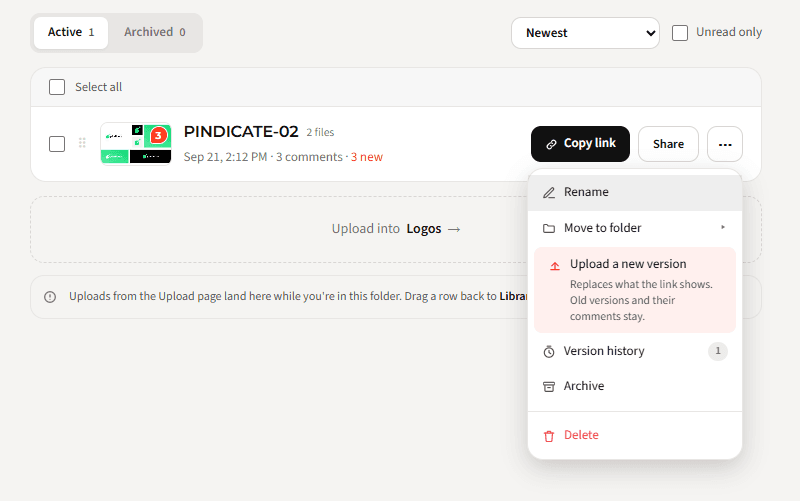
Upload the next version to the review your client already has. The link doesn't change, and earlier rounds are one click away in the version history.

  1. Open the review's menu and choose Upload a new version.
  2. Your client opens the same link and sees the latest round.
  3. Earlier rounds stay in the version history.
A review's menu with Upload a new version and Version history
Follow-upsPRO

Clients who go quiet get a friendly nudge

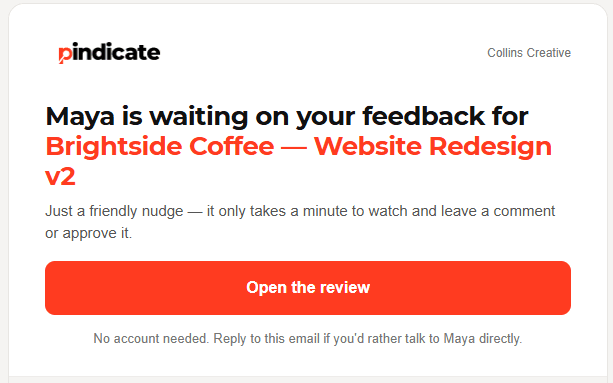
Turn on reminders with your client's email. If they go quiet, Pindicate sends them a friendly nudge for you. Two at most, and they stop as soon as the client comments or approves.

  1. Turn on reminders for the review, with the client's email.
  2. If they go quiet, they get a reminder email.
  3. Your team stops chasing and starts on the next job.
A reminder email: Maya is waiting on your feedback for Brightside Coffee, with an Open the review button
Sign-offPRO

Approval in writing, saved on the review

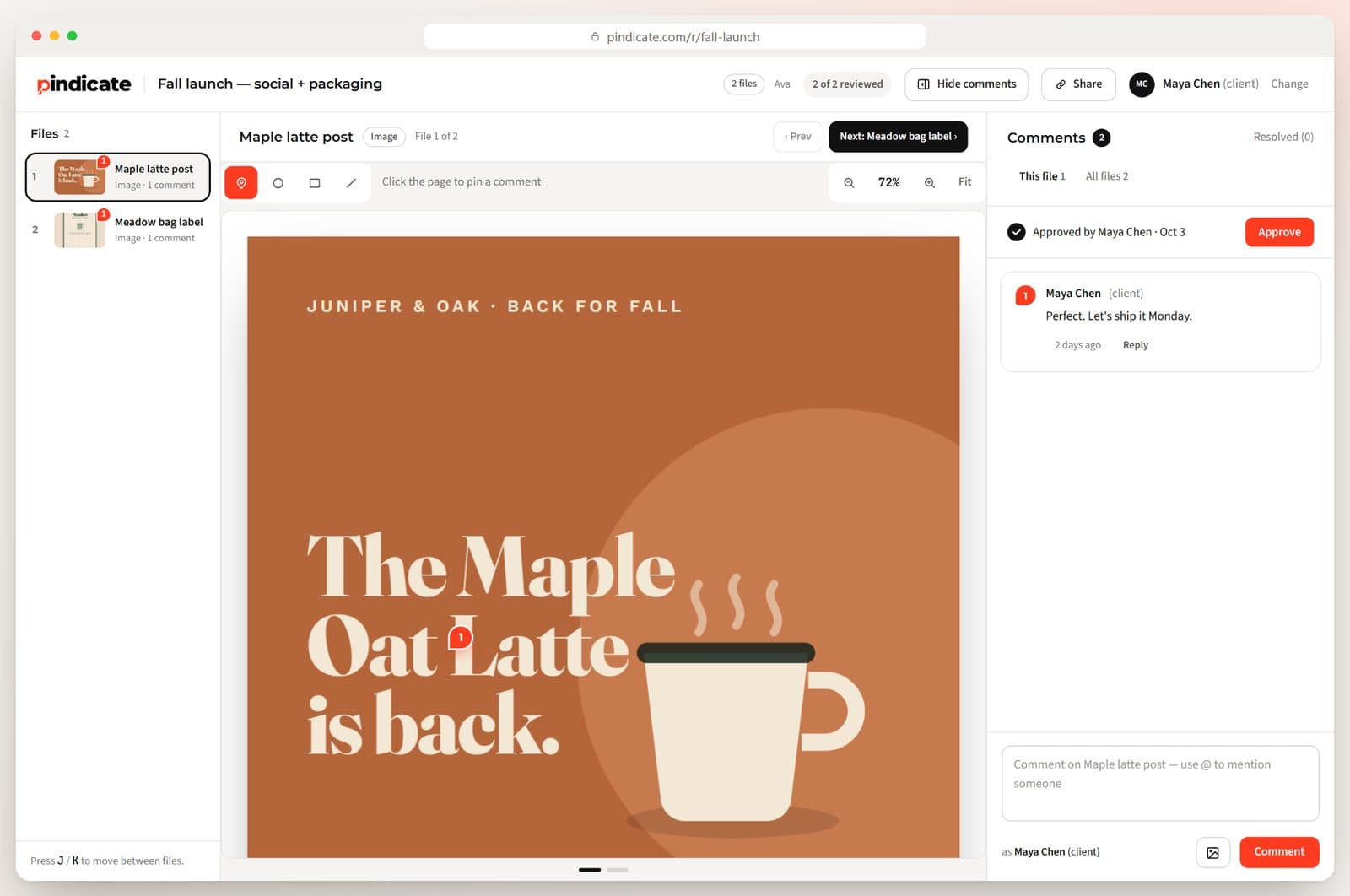
Your client clicks Approve on the version they're happy with. You get an email right away, and their name and the time stay on the review for anyone on the team to check.

  1. Client clicks Approve.
  2. You're emailed the moment they do.
  3. The library shows who approved, and when.
A two-file review marked Approved by Maya Chen on Oct 3
Private work

Control who can open each link

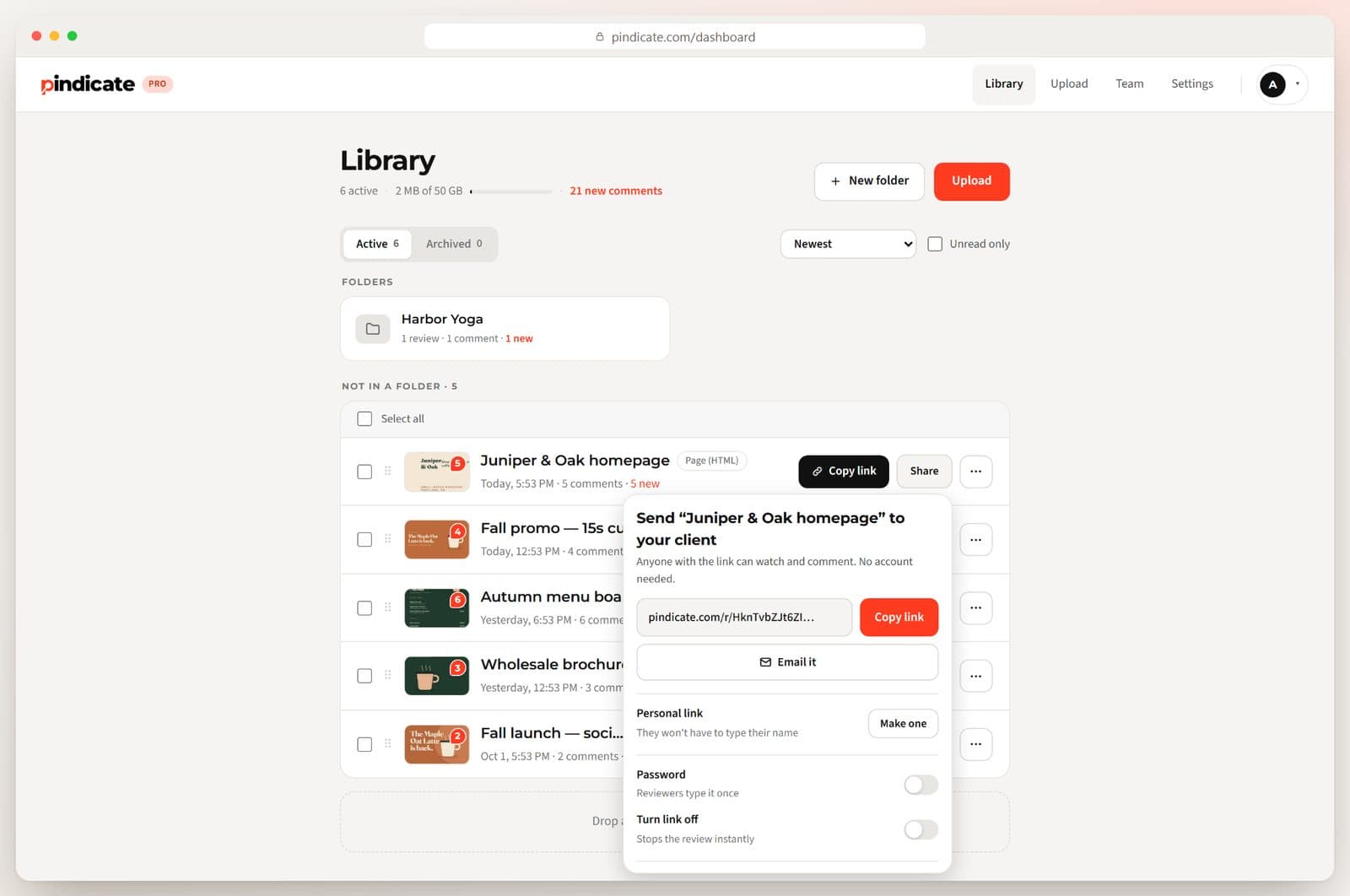
Add a password, send a personal link so a client's name is already filled in, or turn a link off the moment a project ends.

  1. Copy the link or email it from Pindicate.
  2. Add a password for work that isn't public yet.
  3. Turn the link off instantly when you're done.
The share panel with Copy link, Email it, Personal link, Password and Turn link off

One client round, the whole team

  1. MondayYour designer uploads the fall launch: three files, one link. Your account lead emails it to the client.
  2. TuesdayThe client leaves six pinned notes. One is about the website, so you @mention your developer on that note.
  3. WednesdayEach person replies under their own note and makes the change. Round two goes on the same link.PRO
  4. ThursdayThe client has gone quiet on round two, so Pindicate reminds them for you.PRO
  5. FridayThe client approves. Everyone can see who signed off, and when.PRO
Free
$0

3 active reviews at a time, every file type, and clients never pay or sign up.

Pro
$12/moor $96/yr

Unlimited reviews, 50 GB of storage, up to 2 GB per video, versions on the same link, client approvals and automatic reminders.

One flat price for the account. Teammates aren't billed as seats. See every plan

Questions

How does my team work in Pindicate?

One account owns the library. Add teammates to your Team list and @mention them in any comment: they get an email that opens the review, and they reply right there. Everyone in a thread is emailed when someone replies.

Do we pay per person?

No. Pro is $12 a month or $96 a year for the account, and your clients never pay.

Do our clients need an account?

No. They open the link, type their name and comment. No app and no password, unless you add one to the link.

We need something more custom.

If you need things Pindicate doesn't do yet, like reviewer assignment or a custom domain, we scope it with you on a call. Use the contact form on the pricing page.

Run your next client round through Pindicate.

Upload a file and you'll have a review link in about 10 seconds. Free to start, no card needed.