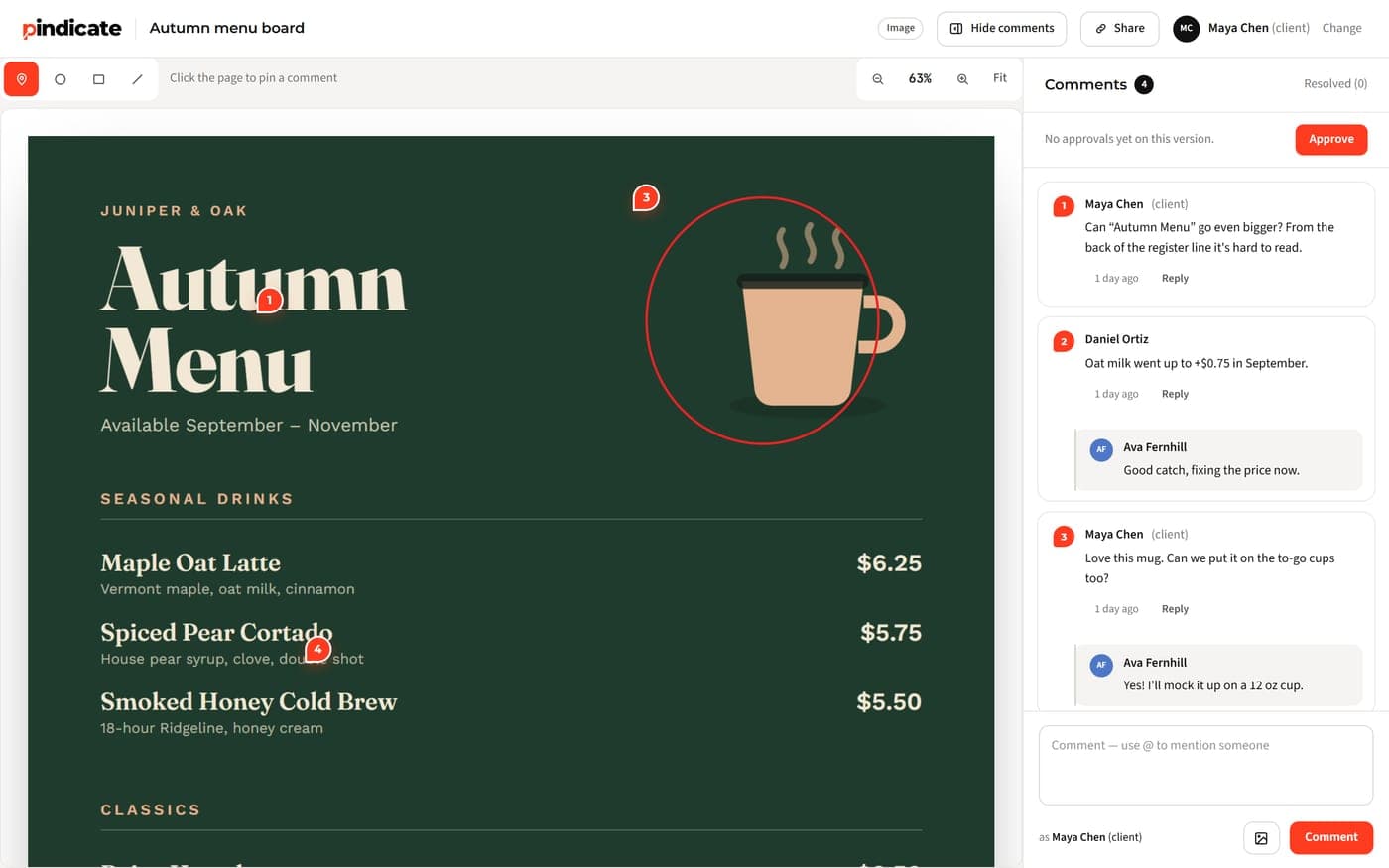
How to annotate a website for client or team feedback in five steps, free, with no extension to install. Plus when a screenshot, an extension or a widget fits better.
Table of contents
TL;DR: To annotate a website for feedback, paste the page's URL into a review tool that captures it, send the link, and the reviewer clicks the spot and types. No extension, no account for them. Pindicate does this free. A screenshot works for one quick note; an extension or a site widget fits developers fixing bugs.
The five steps: paste the URL, copy the link, send it, they click and comment, you read it all in one place.
This is about annotating a website so someone can give feedback on it, not taking study notes on an article. If you want to highlight text while you read, a highlighter extension is the right tool and this isn't that guide.
Here's the moment this solves. You send the client a link to the staging site. The reply is a paragraph: "the thing on the left, under the blue bit, feels off, and the other button should probably be where the first one is." You read it three times. You still don't know which button.
Knowing how to annotate a website fixes that in one move: the comment lands on the spot, so "the thing on the left" becomes a pin you can click. Below are five steps with real screenshots, then the other methods and when each one is the better choice.

What annotating a website means here
Annotating a website for feedback means leaving comments attached to specific spots on a page, so the person fixing it knows exactly where and what. The comment and the spot travel together.
Website annotation (for feedback) is a comment pinned to a point on a web page, with a note. The same phrase also means highlighting text while reading; that's a different job and a different tool.
"The thing on the left" fails because the page has a left on every scroll position, and the reader's screen isn't yours. A pin doesn't fail. It's at one place, on one version of the page, with the note next to it.
Reality Check: the reviewer is the person who matters. If they have to install or sign up for something, a good share of them won't. Pick the method by what the reviewer has to do, not by what you'd enjoy using.
The five steps (no signup for the reviewer, no extension)
Paste the URL, get a link, send it, they click and comment, you see every comment in one place. Pindicate is our tool, and it's the one in the screenshots; the free plan covers this.
Step 1: Paste the page's URL
On the upload page, choose Capture a webpage and paste the address. Pindicate takes a full-page snapshot of the live URL, top to bottom, so the whole page is in the review, not just the first screen. The same box takes a Google Slides or Docs link if that's what you're reviewing. How Pindicate works covers the rest of the product in two minutes.
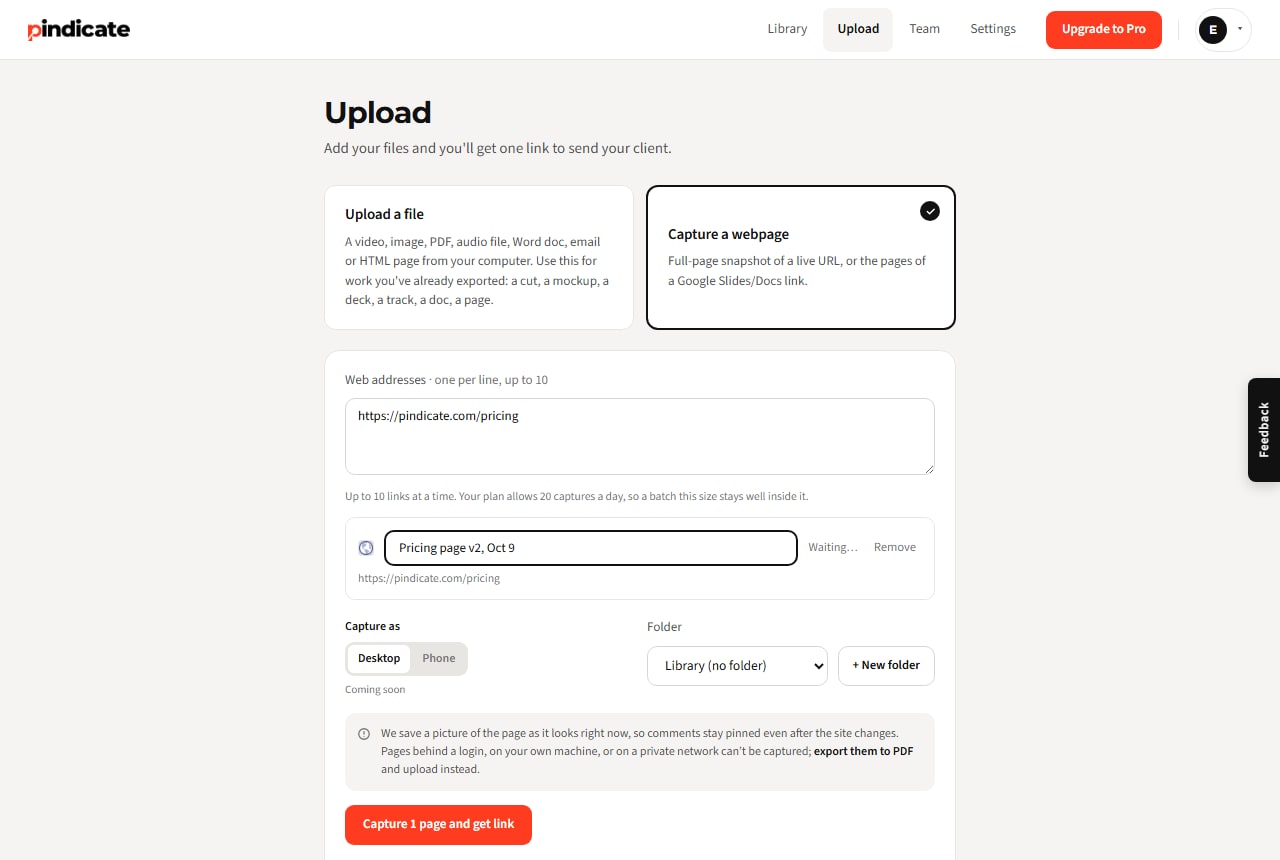
You should see the address accepted and a title suggested from the page.
Step 2: Copy the review link
The capture takes a few seconds. When it's done you get one link, and that link is the whole hand-off.
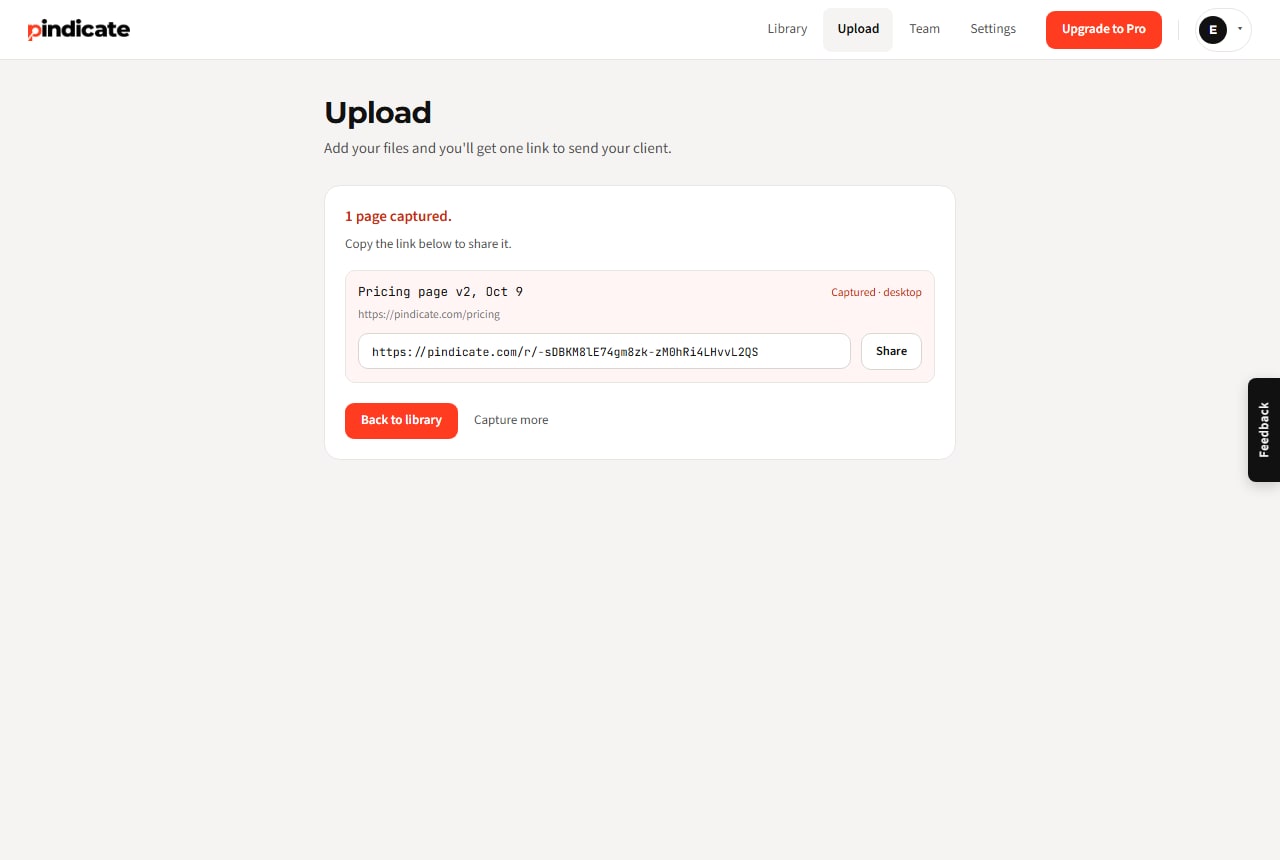
Pro Tip: name the review for the round, like "Homepage v2, Oct 9". When the client has three links in their inbox, the title is how they know which one is current.
Step 3: Send it; the reviewer types a name
Email it, text it, drop it in Slack. The reviewer opens the link, types a name, and they're in. No account, no app, no extension. You can open a sample review to see that first screen yourself; the sample is itself a captured web page.
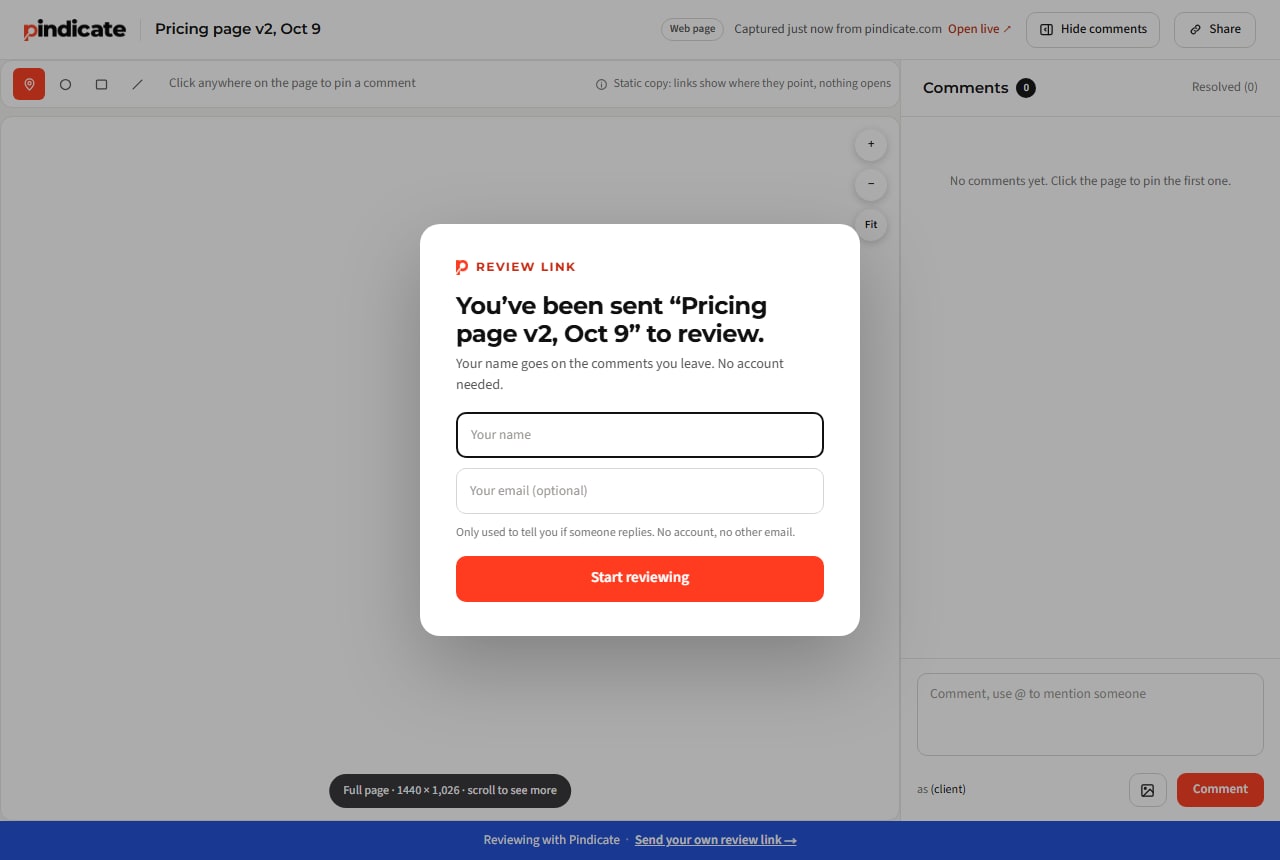
They should see the page exactly as you captured it, with a prompt to click anywhere and comment.
Step 4: Click the spot, write the note
The reviewer clicks the part of the page they mean, a pin lands there, and the note sits in the sidebar next to it. "The thing on the left" is now pin number 2, on the thing on the left.
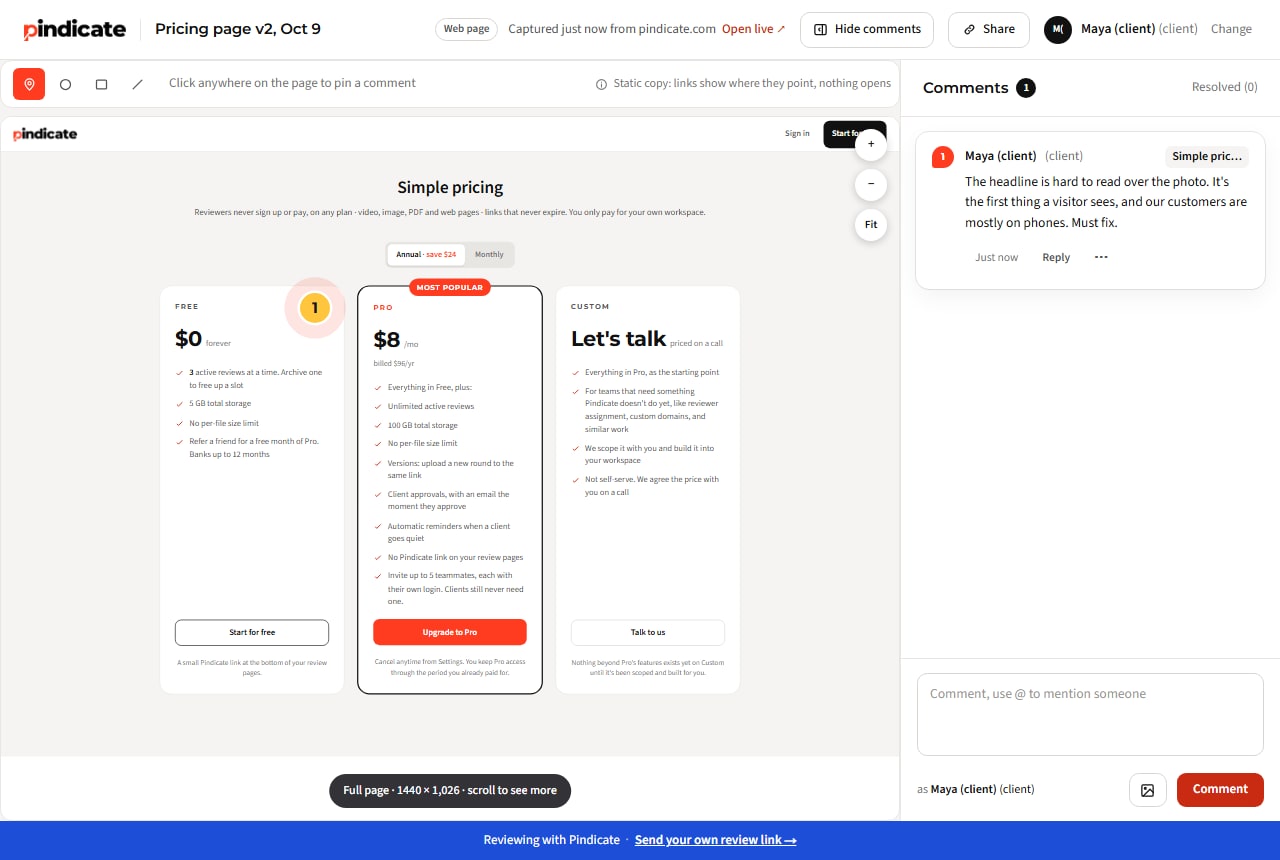
One line on what to write: say what you noticed, where it is, and why it matters. The questions that get useful answers has the longer version for the person asking.
Step 5: Read everything in one place
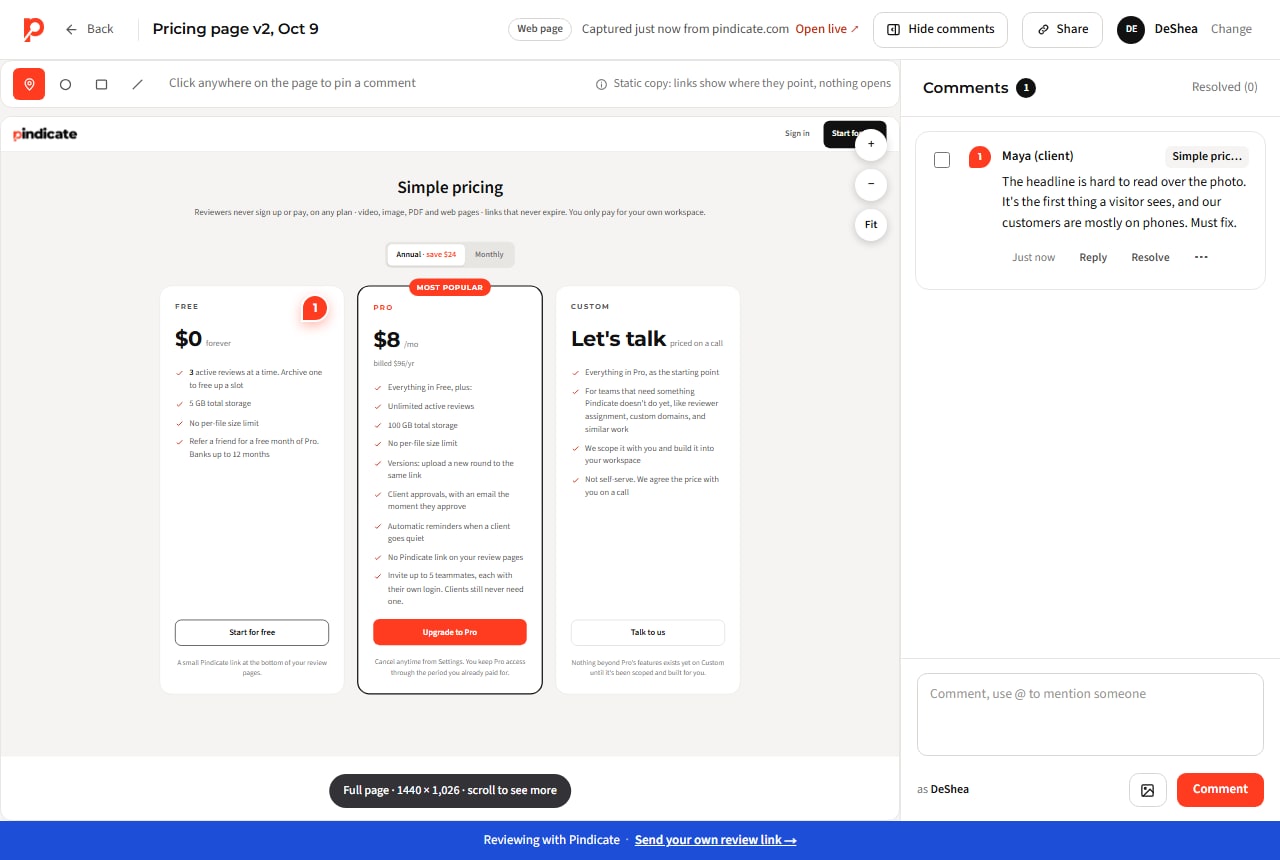
Back in your library, the review shows every comment in order, each tied to its spot. Reply to one, resolve it when it's fixed, and the client sees that too. No thread to reconstruct.
Paste a URL on the homepage and you'll have a review link in about ten seconds. Free, no signup. Capture a page free.
Live page or snapshot?
A snapshot freezes the page so the comments stay attached to what the reviewer saw. A live page keeps changing, which is right for tracking bugs on a site in motion and wrong for a review round.
Pindicate captures a snapshot. That gives you three things: the comments can't drift when the site deploys, it works on any public URL, and there's nothing to add to the site. It also has limits, and you should know them before you send the link:
- Hover states and animations aren't in it. It's a picture of the page at rest.
- Pages behind a login or a password can't be captured by URL. Upload the page's HTML file or a full-page screenshot instead.
- Links in the snapshot show where they point but don't open. That's on purpose; the review is about this page, not the next one.
Watch Out: if you're tracking live bugs on a site that deploys daily, a snapshot goes stale by the afternoon. That's the job for an extension or a site widget, covered next.
Other ways to annotate a website, and when each fits
There are five methods worth knowing, and the right one depends on what the reviewer has to do and what you need captured.
| Method | Reviewer has to | Captures | Cost | Fits |
|---|---|---|---|---|
| Screenshot + markup (Preview on Mac, Snipping Tool on Windows) | Nothing; they get an image | One screen, static | Free | One quick note, one person |
| Snapshot + link (Pindicate) | Open a link, type a name | The full page, frozen | Free plan; Pro $12 a month | Client review rounds on public pages |
| Browser extension | Install the extension | The live page in their browser | Free to paid | Marking up pages for yourself; teams who all install it |
| Script-tag widget on the site | Nothing, once a developer adds the widget | The live page, element by element | Usually paid; needs code access | Developers tracking bugs on staging |
| PDF printout + PDF comments | Open a PDF | Static pages | Free | Formal sign-off, print-minded clients |
Browser extensions are good at one thing: marking up a page in your own browser, live, with drawing tools. The catch is the install. It's fine for you; it's a wall for a client who opens email on their phone.
Site widgets are what developer-focused bug tools use. A developer adds a small script to the staging site, and anyone on the page can click an element and file a note. Great for a dev team. It needs someone with access to the code, and it doesn't help when the page isn't yours.
If you already use a proofing tool, check whether it takes URLs; the best proofing software for designers lists which ones review web pages. For a team reviewing the same page, see how a team reviews pages in one place.
Key Insight: the method that gets used is the one that asks the least of the reviewer. Every install, signup or download you add removes someone from the round.
What to write in the annotation
Say what you noticed, where it is on the page, and why it matters for what the page has to do. The pin handles "where"; you handle the other two.
Vague: "The header feels off."
Better: "The headline is hard to read over the photo (top of the page). It's the first thing a visitor sees, and our customers are mostly on phones. Must fix."
Quick Win: mark each note must-fix, nice-to-have or just-a-thought. Three words that stop a redesign over a nitpick, and the designer can plan the round instead of guessing.
Frequently Asked Questions
How do I annotate in a website?
Open the page in a review tool that captures it by URL, then click the spot you mean and type. On Pindicate the reviewer opens a link, types a name and clicks; nothing to install. For a one-off note to one person, a screenshot and the markup tool built into your computer work too.
Where can I annotate a website for free?
Pindicate's free plan captures a page from its URL and gives you a review link; reviewers comment without an account. Free browser extensions exist for marking up pages in your own browser. A screenshot with the built-in markup on Mac or Windows is free and needs nothing installed at all.
How can you annotate websites on Google Chrome?
Two ways. Install a Chrome annotation extension and mark up the page in your own browser, or skip the install and paste the URL into a tool that captures the page and gives you a link. The second is better when someone other than you has to leave the comments.
Can you annotate a live website?
Yes, with a browser extension or with a widget added to the site by a developer. A snapshot-based tool like Pindicate captures the page as it was when you pasted the URL, which keeps the comments stable but won't show hover states or anything behind a login.
Can clients annotate a website without creating an account?
Yes. With a review link they open the page, type a name and click where they mean. That's how Pindicate works, and most client-review tools now do the same. Extensions are the exception: the client has to install them first.
How do I annotate a staging site without asking the client to install anything?
If the staging site is public, paste its URL into a snapshot tool and send the link. If it's behind a login or a password, upload the page's HTML file or a full-page screenshot instead, or have your developer add a feedback widget to the site.
Mark up your next page in a minute
Paste the URL, send the link, read the comments in one place. Free, nothing to install, and nobody signs up to comment.
Capture a page free. If you do this for clients every week, Pindicate for freelancers covers the rest of the round, and there are more guides on getting feedback you can use.