Claude artifact feedback without Slack threads: why public-link viewers can't comment in Claude, which link type you have, and how clients pin notes free.
Table of contents
- What is Claude artifact feedback?
- Can people comment on a Claude artifact?
- Which Claude link do you have?
- How to get feedback on a Claude artifact, step by step
- What if you have a Publish link?
- Update the artifact without losing the notes
- Getting Claude artifact feedback you can act on
- Claude comments vs Pindicate
- Frequently Asked Questions
- Get your next round of notes on the exact spot
TL;DR: Claude only lets people you invite, with a Claude account, comment on an artifact, and never on a public link. For client feedback, share the artifact with "Anyone with the link", paste that link into Pindicate, and send the review link. Clients click the spot and type, no account. For an old Publish link, upload screenshots instead.
You built a landing page mockup in Claude in twenty minutes. It looks great. You sent the client the link.
The reply came back as an email paragraph: "Love it! Can the top part feel warmer, and the second button is maybe too much? Also the photo." Which top part. Which button. Which photo.
Good Claude artifact feedback means the client's notes land on the exact spot they're about. Claude can make the artifact, but it can't collect notes from a client who only has a public link. This guide shows why, how to tell which kind of Claude link you have, and the steps that get you pinned comments, free.
What is Claude artifact feedback?
Claude artifact feedback is a client's or teammate's notes on something Claude built, tied to the exact spot each note is about. "Make this headline bigger" pinned on the headline beats "the big text at the top" in an email.
Definition: Claude artifact. A page, app, doc, deck or design that Claude builds and you can share as a link. Claude now has two kinds. Legacy artifacts were made in a chat before September 16, 2026 and are shared with a Publish button. Newer artifacts start private, and you share them with people by email or with "Anyone with the link".
That split matters more than it sounds. The two kinds use different links, they follow different rules about comments, and they don't work the same way in review tools. Claude's help page on what counts as a legacy artifact has the cutoff date.
Can people comment on a Claude artifact?
Yes, but only people you invite by email who have a Claude account, and not on an artifact you've also opened to "Anyone with the link". A client who just has the public link can look, but can't comment in Claude.
Here's how Claude's own pages put it. Claude's sharing help page says Commenter access means "Everything in Can view, plus add comments." The person you invite "needs a Claude account with the email address you invited." And invited commenters "can't comment on an artifact that's also shared with 'Anyone with the link.'"
Claude Code's artifact docs say the same thing from the other side: "people whose only access is the public link don't see its comments and can't add any."
So Claude's comments work well for a teammate who already lives in Claude. They don't work for most clients.
| Who's reviewing | Can they comment in Claude? | Can they comment in Pindicate? |
|---|---|---|
| Teammate you invite, with a Claude account | Yes, if the artifact isn't public | Yes |
| Client with only the public link | No | Yes, no account needed |
| Client with no Claude account | No | Yes, no account needed |
Watch Out: Public sharing and Claude comments don't mix. Once you turn on "Anyone with the link" to make it easy for the client, Claude's comment box is gone for them. Plan the feedback step before you send the link.
Which Claude link do you have?
Your Claude link is one of three kinds, and you can tell which by looking at the address. The kind decides whether your client can open it and whether a review tool can capture it.
| Link looks like | Where it comes from | Pindicate |
|---|---|---|
claude.ai/artifact/... |
A newer artifact, shared with "Anyone with the link" | Captures it as one full-length picture |
claude.ai/public/artifacts/... or claude.site/artifacts/... |
The Publish button on a legacy chat artifact | Can't capture it. Upload screenshots instead |
claude.ai/chat/... |
The conversation itself | Don't send this one. It shows your chat, not just the artifact |
We tested each kind on October 26, 2026. A claude.ai/artifact link captured as one tall image, 1440 by 2124 pixels, with Claude's top bar and its "Made with Claude" badge left out. The Publish links didn't capture at all. Claude's security check blocks automated browsers from loading them.
One more wrinkle. Claude's pages don't agree on whether someone needs a Claude account to open a newer shared artifact. The help center says everyone does, except for legacy Publish links. The Claude Code docs say a public link opens with no sign-in. So test it yourself.
Pro Tip: Before you send any Claude link, open it in a private browser window where you're not signed in to Claude. If the artifact shows up, your client can see it, and Pindicate can usually capture it. If you hit a sign-in screen, change the sharing setting first.
How to get feedback on a Claude artifact, step by step
The short version: share the artifact publicly, paste the link into Pindicate, and send the client the review link. The whole thing takes about two minutes. It works like any other web page, so if you've read our guide on how to annotate a website, this will feel familiar.
Step 1: Share the artifact with "Anyone with the link"
Open the artifact in Claude and use its share settings. Choose "Anyone with the link", then copy the link. It should start with claude.ai/artifact/.
On Team and Enterprise plans, that option only shows up when an Owner has turned on External sharing. If you don't see it, ask whoever runs your Claude workspace.
Step 2: Run the private-window test
Paste the link into a private or incognito window. You should see the artifact itself, not a sign-in page and not your chat. This takes ten seconds and saves an awkward "it says I need to log in" email from the client.
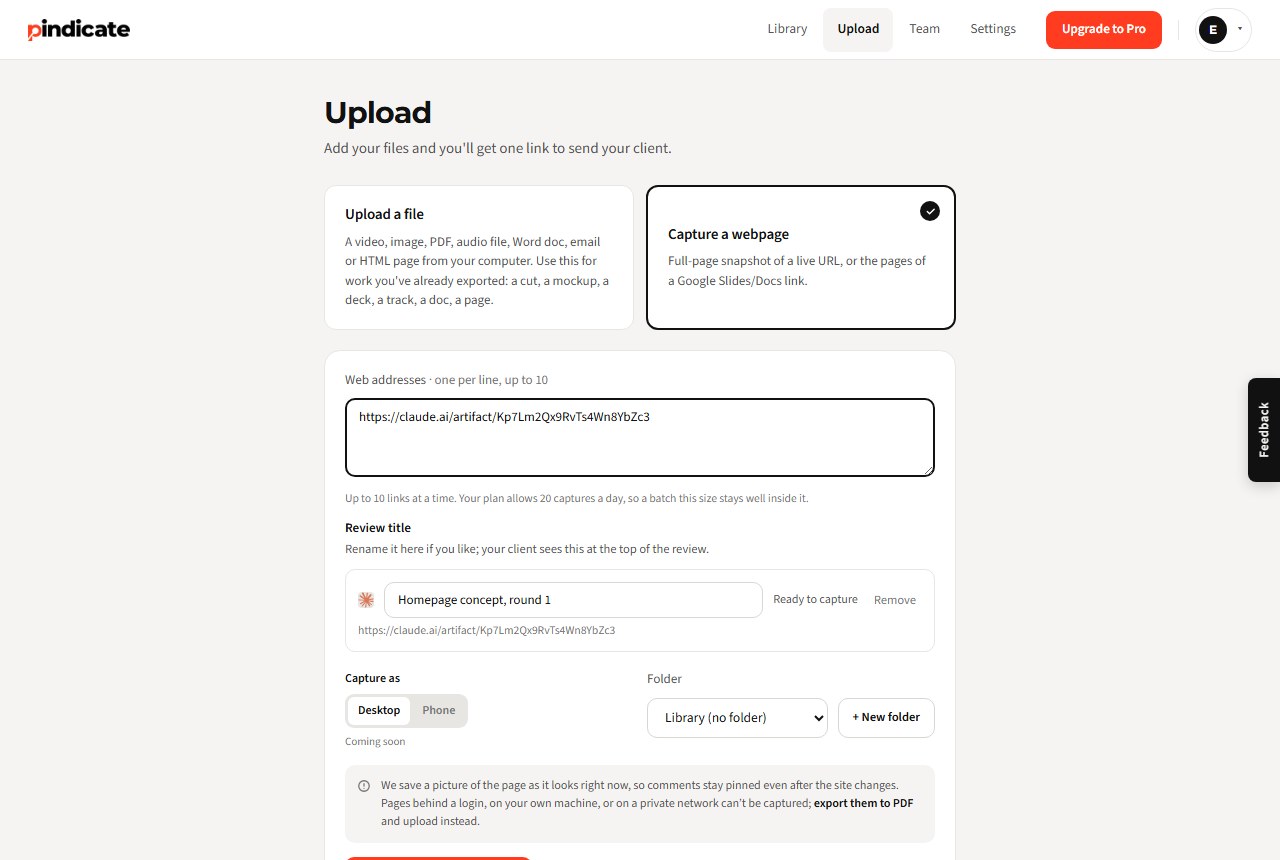
Step 3: Paste the link into Pindicate
In Pindicate, choose Capture a webpage and paste the link. Pindicate takes one full-length picture of the artifact, even when it scrolls inside Claude's frame. Claude's top bar, title and share buttons stay out of the picture, so the client sees only your work.
Give the review a clear title before you capture. "Homepage concept, round 1" beats the default.
Step 4: Send the review link
Copy the review link and send it however you normally talk to the client: email, Slack, text. They don't install anything and they don't make an account.
Step 5: The client clicks the spot and types
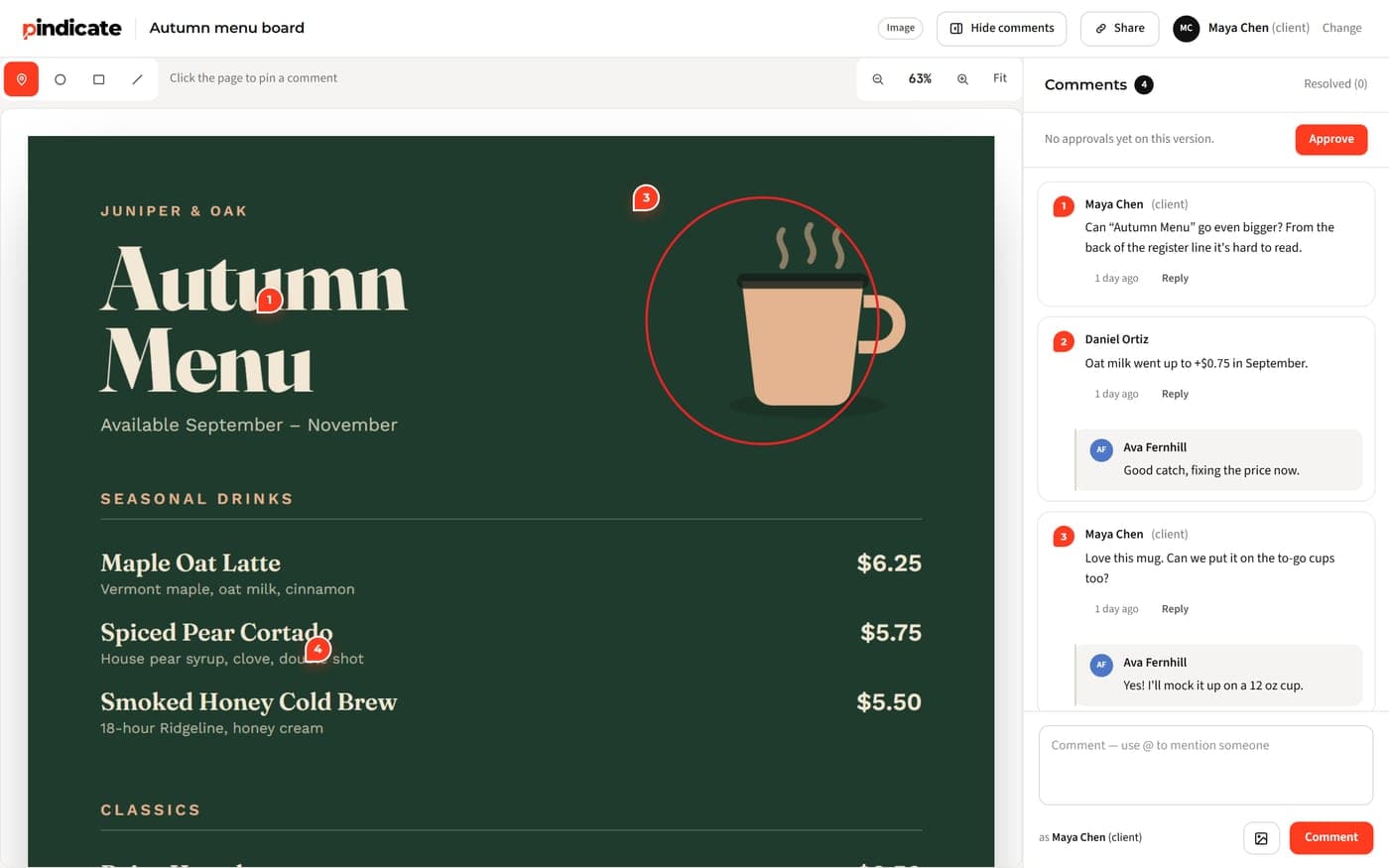
The client opens the link, types their name, clicks the exact spot and writes the note. They can also draw a box or circle, reply in a thread, and you mark each note resolved as you fix it. Every note shows up in one list with a number that matches its pin.
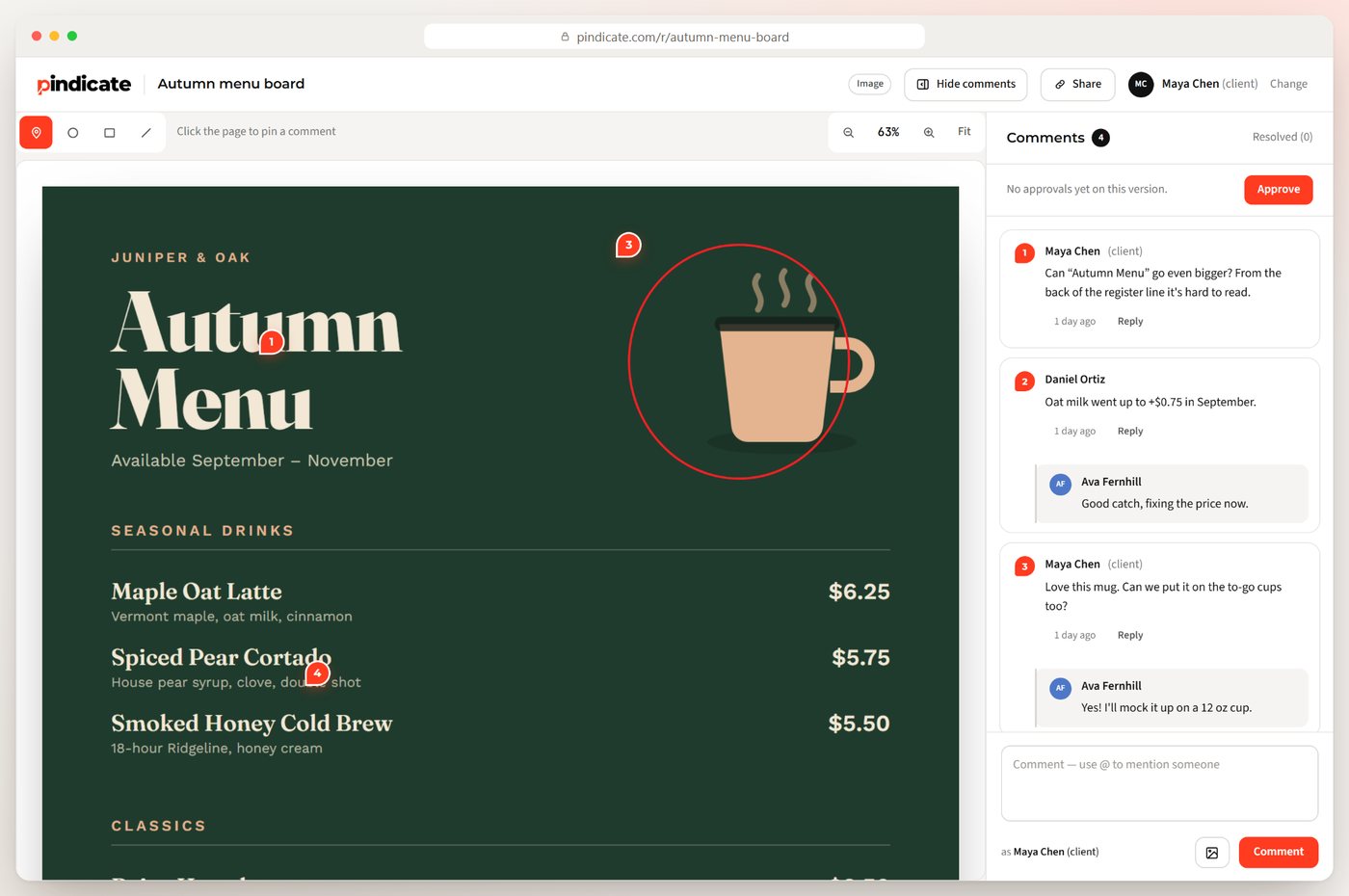
Key Insight: Pindicate reviews a picture of the artifact, not the live page. That's on purpose. If you keep editing the artifact in Claude, the client's pins don't drift onto the wrong thing. You make the changes, then send round two.
Step 6: Get a clear yes
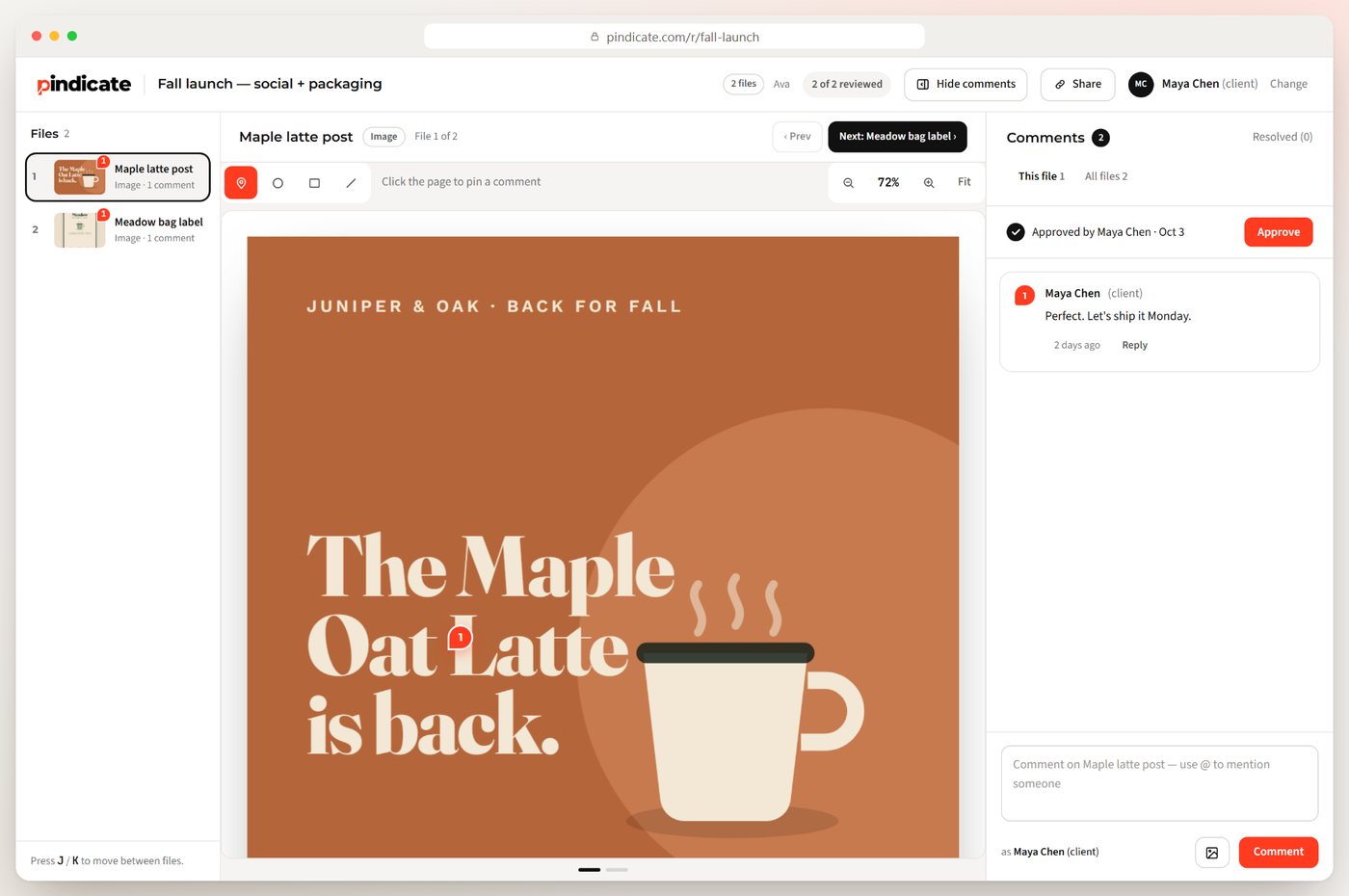
On the Pro plan, the client clicks Approve when they're happy. Their name and the date are saved on that version, and you get an email. No more digging through threads for "looks good I think?"
Get notes on the exact spot. Paste your Claude artifact link into Pindicate and send one link. Free for 3 active reviews, no card needed. Start free
What if you have a Publish link?
Pindicate can't capture Claude's Publish links, the claude.ai/public/artifacts/... and claude.site/artifacts/... kind. Claude's security check blocks automated browsers from those pages, and we don't try to get around it. Screenshots work instead.
You'll know right away. Paste a Publish link and Pindicate marks it Can't capture before you press anything. Press capture anyway and it skips the link in under a second, with a button that says Upload screenshots instead.
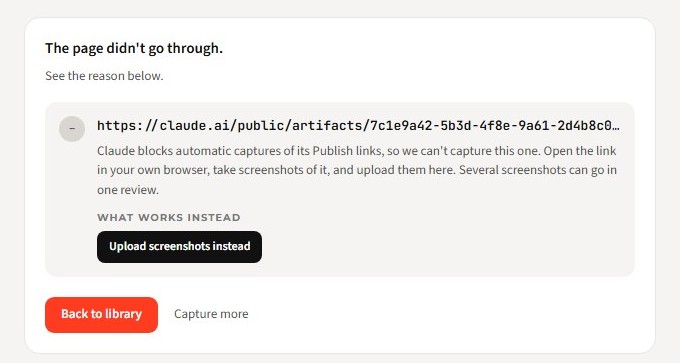
Here's the screenshot route:
- Open the Publish link in your own browser.
- Take a screenshot of each screen. Scroll and take more for a long page.
- Upload all of them to one review. Pindicate keeps them together, and the client moves between them.
- Send the review link. The client comments on each screenshot, still with no account.
Got a newer Claude Design, Docs or Slides artifact? Claude lets the owner export those, and a PDF export uploads to Pindicate as pages your client can pin.
Quick Win: Made the artifact before September 16, 2026? Ask Claude in a new chat to rebuild it. New artifacts share as
claude.ai/artifact/links, which Pindicate can usually capture in one step instead of a stack of screenshots.
Update the artifact without losing the notes
Fix the notes in Claude, then capture the updated artifact as the next round. The old notes stay with the old round, so you can check that every one got handled.
On the Pro plan, you upload the new round as a new version on the same review. The client keeps the same link, sees the latest version first, and can still look back at what they said last time. On Free, start a new review for each round. Free covers 3 active reviews at a time.
Either way, resolve each pin as you fix it. When the list of open notes hits zero, you know you're ready to ask for the approval.
Getting Claude artifact feedback you can act on
Pinned comments fix the "which button" problem. They don't fix vague notes. A little setup in the message you send fixes most of that.
- Ask one question per round. "Does the headline say what we do?" gets a better answer than "thoughts?"
- Name one decision-maker. Five people with opinions is a meeting. One person with the final say is a decision.
- Give a date. "Notes by Thursday" gets notes by Thursday.
- Say what's not up for debate. If the brand colors are locked, say so before someone pins five comments on them.
Our guide on how to give design feedback is a good link to send clients who've never reviewed design work before.
Claude comments vs Pindicate
Claude's built-in comments are good for teammates who already use Claude. Pindicate is built for clients who don't. Here's the honest split.
| Claude comments | Pindicate | |
|---|---|---|
| Who can comment | People you invite by email | Anyone with the review link |
| Reviewer needs an account | Yes, a Claude account | No |
| Works with a public link | No | Yes |
| Approve button with name and date | Not one of Claude's sharing options | Yes, on Pro |
| Works for Publish links | Not applicable | Through screenshots |
| Cost | Part of your Claude plan | Free for 3 active reviews; Pro is $12 a month |
If your whole team and the client all use Claude, its comments may be all you need. If the client doesn't, that's where a client feedback tool earns its place.
Frequently Asked Questions
can viewers comment on a published claude artifact?
Not in Claude. People who only have the public link can't see or add comments, according to Claude's own docs. Claude's comments are for people you invite by email who have a Claude account. To collect notes from a client with a public link, capture the artifact in a review tool like Pindicate, where they comment with no account.
does my client need a claude account to see the artifact?
It depends on the link. A legacy artifact shared with Claude's Publish button opens for anyone, no account needed. For newer artifacts, Claude's own pages disagree, so test it: open the link in a private browser window where you're not signed in. If the artifact shows up, your client can see it too.
how do i share a claude artifact with a client for review?
Share the artifact itself, not your chat. For a newer artifact, open its share settings, choose "Anyone with the link" and copy the link. For a legacy chat artifact, click Publish. Then paste the link into a review tool so the client can comment on the exact spot.
how do i get specific, element-level feedback on a claude artifact?
Paste the artifact's claude.ai/artifact/ link into Pindicate and send the review link. The client clicks the exact spot and types the note, so every comment is pinned where it belongs. For a Publish link, which Pindicate can't capture, upload screenshots of each screen to one review instead.
can i update the artifact after sharing it?
Yes. Keep editing in Claude, then capture the updated artifact as the next round of feedback. On Pindicate's Pro plan, upload it as a new version on the same review link, so the client keeps one link and can still see what they said last round.
what's the difference between chat artifacts and the new ones?
Chat artifacts made before September 16, 2026 are what Claude now calls legacy artifacts. You share those with the Publish button. Newer artifacts start private and you share them by email or with "Anyone with the link". The two kinds have different link addresses and different rules for comments.
Get your next round of notes on the exact spot
Your client shouldn't need a Claude account to tell you which button they mean. Paste the artifact link, send one review link, and read every note in one place.
Start free, no card needed. Want to see what your client sees first? Open a sample review. Building sites and landing pages for clients every week? Pindicate for web designers covers the whole round.
Get the next post by email
Guides on getting clear client feedback and getting work approved faster. We only email when there's a new post.
We'll email you a link to confirm. You can unsubscribe any time. Privacy Policy