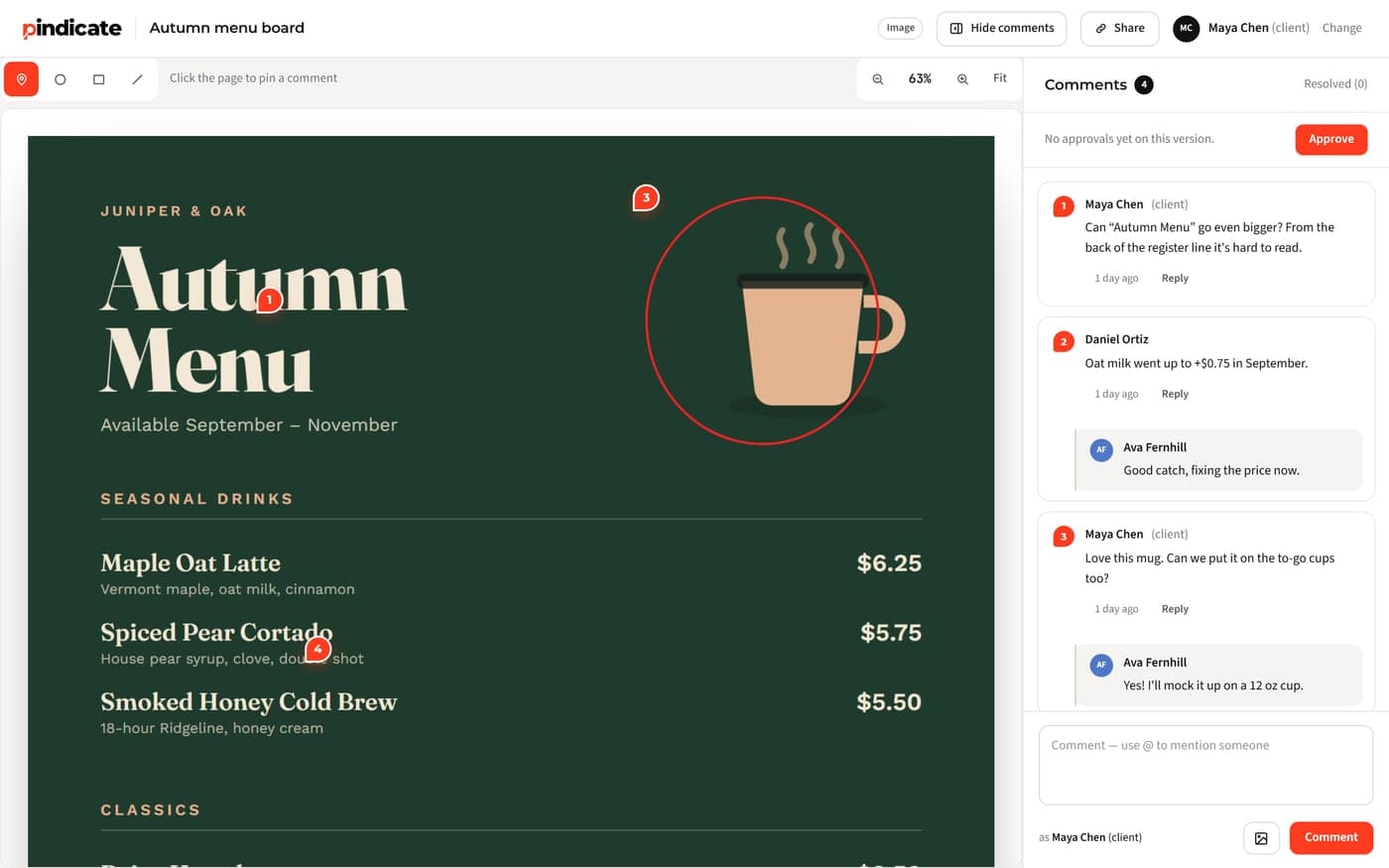
Connect Pindicate to Claude, Claude Code or Cursor. Send your work to a client, get pinned comments back, and have Claude fix it. Free plan works.
Table of contents
- Key Takeaways
- What does the Pindicate MCP do?
- How to connect Pindicate to Claude (claude.ai and Claude Desktop)
- How to connect Pindicate to Claude Code
- How to connect Pindicate to Cursor
- What can you send from each app?
- Prompts that work
- What your client sees
- Have Claude read the comments and fix the work
- Limits, privacy and disconnecting
- Frequently Asked Questions
- Send your next round from Claude
TL;DR: Add
https://pindicate.com/mcpas a connector in Claude, Claude Code or Cursor. Sign in to Pindicate and click Allow. Then ask Claude to send your work to Pindicate, and it hands back a review link for your client. When the client has commented, ask Claude to read the comments and fix the work.
You built the homepage with Claude in an afternoon. Now the client has to approve it, and the client doesn't use Claude.
So you export screenshots, paste them into an email, and wait. The notes come back as "the top bit feels off." Then you copy those notes back into Claude by hand.
The Pindicate MCP connector cuts out the middle. Claude sends the work to Pindicate and gives you the link. Your client pins comments right on the work. Then Claude reads those comments and makes the changes. This guide covers the setup for each app, what you can send, and the prompts that work.
Key Takeaways
- One connector URL works in claude.ai, Claude Desktop, Claude Code and Cursor:
https://pindicate.com/mcp. - It works on Pindicate's Free and Pro plans, with the same limits as the website.
- claude.ai and Claude Desktop can send links and pages Claude made. Files on your computer need Claude Code or Cursor.
- Your client opens the link in a browser. No account, no app.
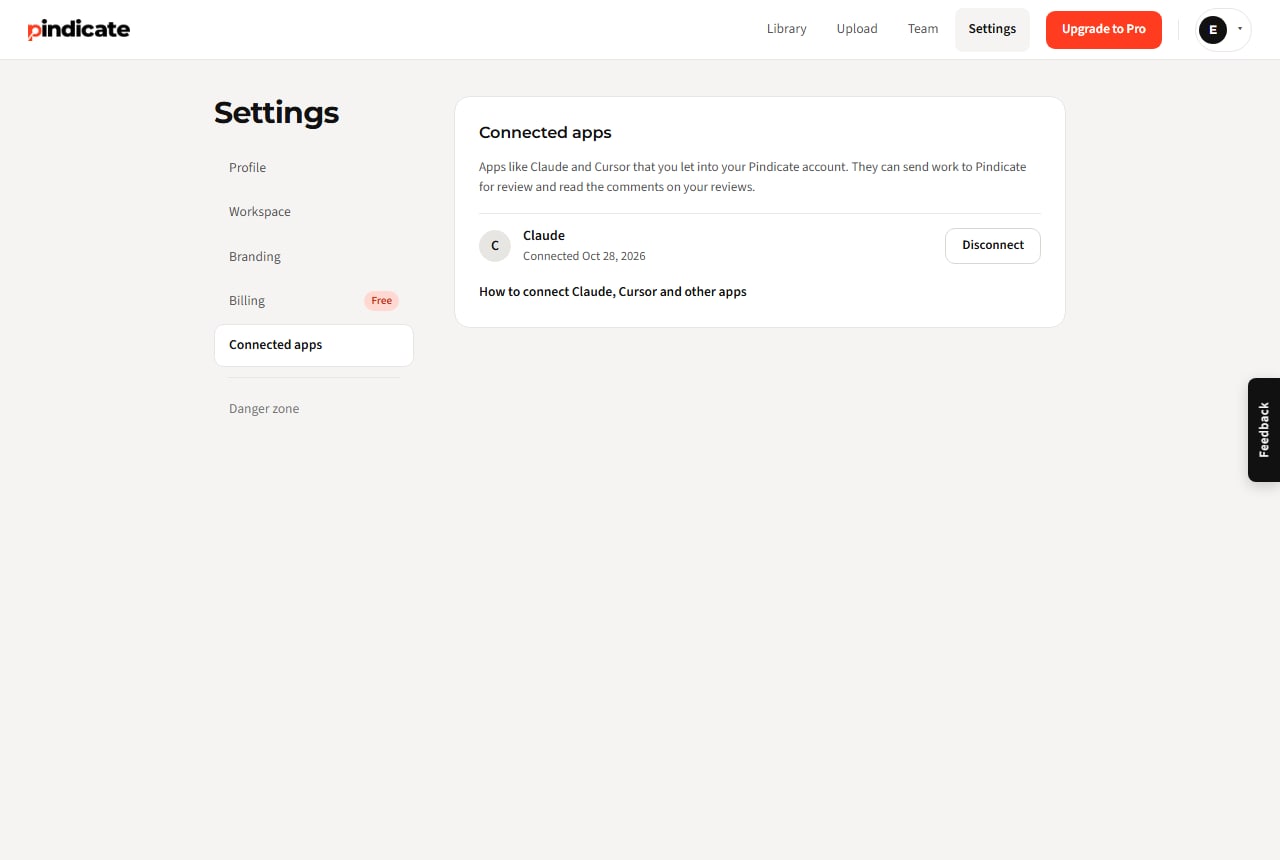
- You can disconnect any app in Pindicate, under Settings, then Connected apps.
What does the Pindicate MCP do?
The Pindicate MCP connector lets Claude create review links in your Pindicate account and read the comments clients leave on them. You ask in plain words. Claude does the clicking.
Definition: MCP (Model Context Protocol). An open standard that lets AI apps like Claude use outside tools and data. A "connector" is one of those tools. See modelcontextprotocol.io for the details.
Here is the loop it gives you:
- Claude builds a page, or you point it at a link or a folder of files.
- Claude sends it to Pindicate and gives you the share link.
- Your client clicks the spot they mean and types a comment.
- Claude reads each comment, with where it sits on the page, and makes the change.
If you haven't used Pindicate before, here's what Pindicate is and who it's for.
How to connect Pindicate to Claude (claude.ai and Claude Desktop)
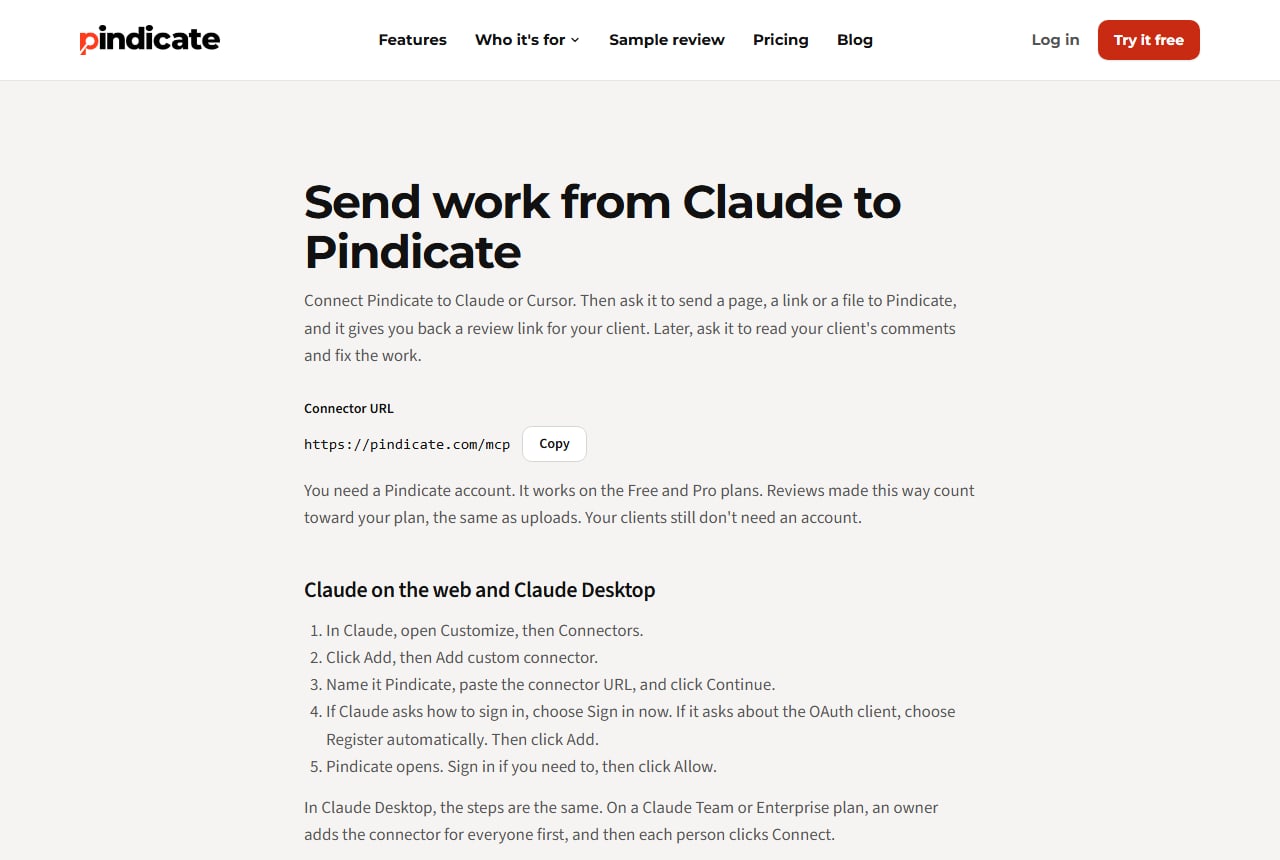
You add Pindicate as a custom connector in your Claude account, then sign in to Pindicate once. It takes about two minutes.
- In Claude, open Customize, then Connectors.
- Click Add, then Add custom connector.
- Name it Pindicate, paste
https://pindicate.com/mcp, and click Continue. - If Claude asks how to sign in, choose Sign in now. If it asks about the OAuth client, choose Register automatically. Then click Add.
- Pindicate opens. Sign in if you need to, then click Allow.
These menu names come from Anthropic's guide to custom connectors. Connectors live in your Claude account, so one you add on claude.ai also shows up in Claude Desktop.
To use it in a chat, click the + at the lower left, then Connectors, and make sure Pindicate is switched on.
Watch Out: Anthropic says Free Claude users are limited to one custom connector. If you already use one, you'd have to swap it out or use Claude Code or Cursor instead.
On a Claude Team or Enterprise plan, an owner adds the connector once in Organization settings, under Connectors. Then each person clicks Connect and signs in to their own Pindicate account.
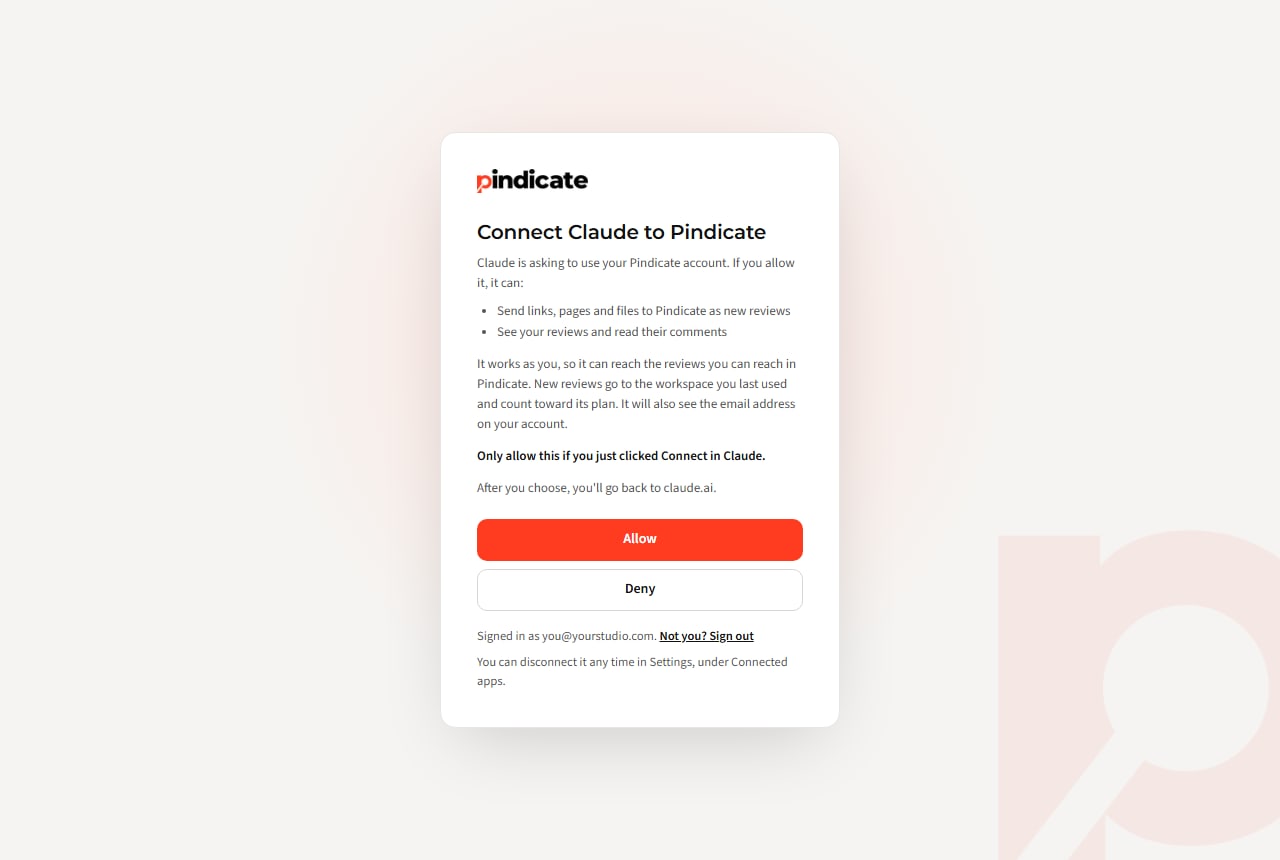
The Allow page spells out what the app can do: send work as new reviews, and read your reviews and their comments. Only click Allow if you just clicked Connect yourself.
How to connect Pindicate to Claude Code
Add the server with one command, then sign in from inside Claude Code.
claude mcp add --transport http pindicate https://pindicate.com/mcp
Start Claude Code, type /mcp, pick pindicate, and choose to sign in. Pindicate opens in your browser. Click Allow.
By default the connector only loads in the project folder you ran the command in. Add --scope user to the command to use it in every project. Both options are in Claude Code's MCP docs.
How to connect Pindicate to Cursor
Add Pindicate to Cursor's MCP file, then sign in when Cursor asks.
Put this in ~/.cursor/mcp.json to use it everywhere, or in .cursor/mcp.json inside one project:
{
  "mcpServers": {
    "pindicate": {
      "url": "https://pindicate.com/mcp"
    }
  }
}
Cursor's MCP docs say it supports sign-in for servers like this one. If a browser window doesn't open on its own, look for a sign-in prompt next to Pindicate in Cursor's MCP list. When Pindicate opens, click Allow.
What can you send from each app?
Every app can send web links and pages Claude made, and read comments. Only Claude Code and Cursor can send files from your computer.
| What you want to send | claude.ai / Claude Desktop | Claude Code | Cursor |
|---|---|---|---|
| A live web link | Yes | Yes | Yes |
| A page Claude made in the chat (HTML, up to 2 MB) | Yes | Yes | Yes |
| Files on your computer (images, PDFs, video and more) | No | Yes | Yes |
| Read the client's comments | Yes | Yes | Yes |
Watch Out: Claude on the web and in Desktop chats can't open files on your computer. To send a PDF or a folder of exports, use Claude Code or Cursor, or upload it yourself at pindicate.com/upload.
Every send gives back the same link the Share button gives in Pindicate. Clients can open it right away.
Prompts that work
Plain requests work best. Name the review so it's easy to find later.
- "Send this page to Pindicate for review and give me the link."
- "Capture https://yourclient.com/new-pricing in Pindicate and give me the link."
- "Upload the PNGs in my exports folder to Pindicate as one review called Ember logo round 2." (Claude Code or Cursor)
- "Read the comments on my latest Pindicate review and fix what they ask for."
- "List my Pindicate reviews and tell me which ones have open comments."
Pro Tip: Put the round number in the title, like "Ember Coffee homepage, round 1." When you ask Claude to read comments later, it can find the right review by name.
What your client sees
Your client opens the review link in any browser, types their name, and clicks the spot they want to talk about. No sign-up, no download.
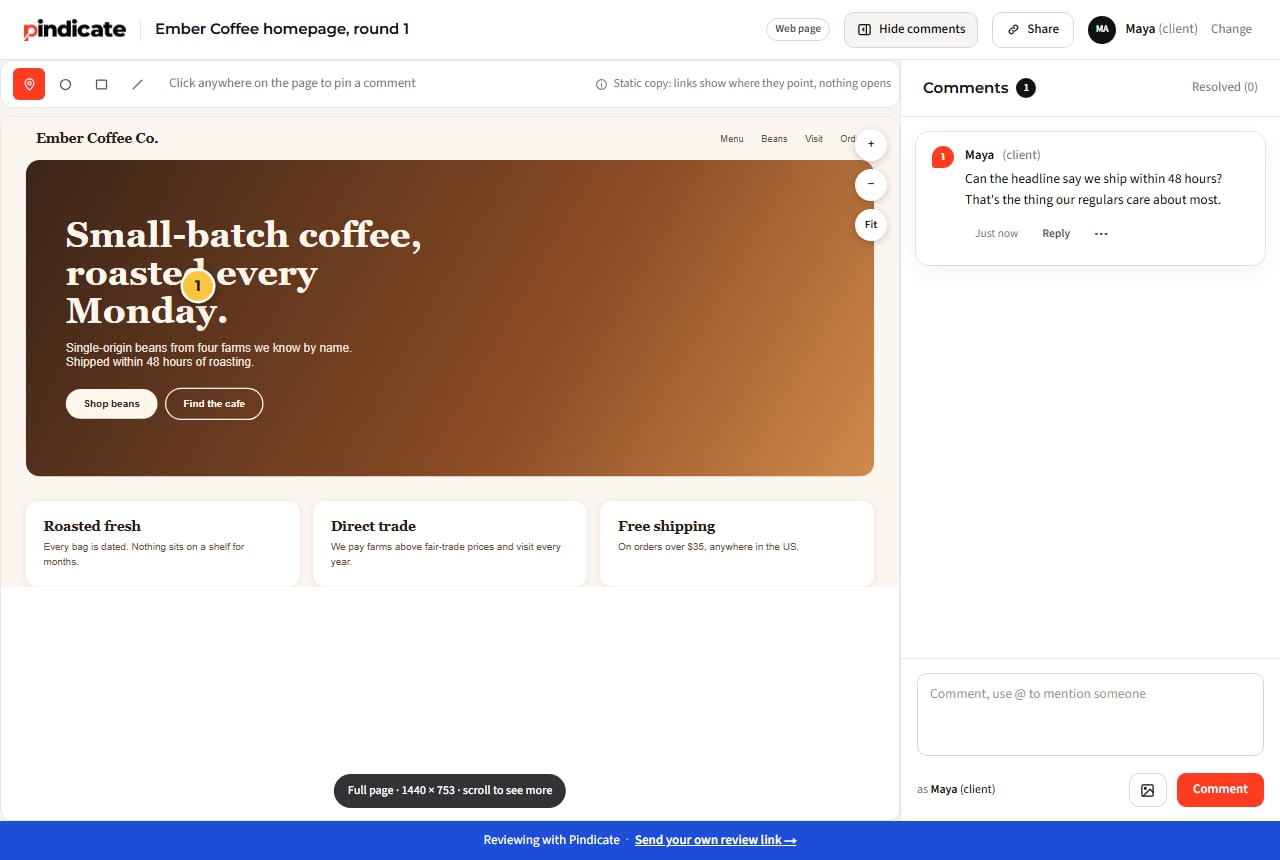
In the screenshot above, Claude sent a homepage it built. The client, Maya, pinned a note on the headline. That pin stays tied to that spot. Here's more on how clients pin comments on a live page.
Have Claude read the comments and fix the work
Ask Claude to read the comments, and it gets each one with who wrote it, what it says, and where it is. That includes the page number for PDFs, the timestamp for video, any replies, and whether it's open or resolved.
This is what Claude got back for Maya's comment, trimmed a little:
{
  "status": "open",
  "author": "Maya",
  "text": "Can the headline say we ship within 48 hours? That's the thing our regulars care about most.",
  "file": 1,
  "marker": { "kind": "pin", "x": 21.9, "y": 34.2 },
  "replies": []
}
The x and y are percentages across and down the page. So Claude knows the note is about the headline, not the footer. It can rewrite the headline, send round 2 to Pindicate, and give you a fresh link.
Ready to set it up? Copy the connector URL from Pindicate's setup page.
Limits, privacy and disconnecting
The connector uses the same plan limits as the website. On the Free plan you can have 3 active reviews at once. If you ask for a fourth, Claude gets the same message the website shows: archive one first, or upgrade. The details are on Pindicate's Free and Pro plans page.
A few more things to know:
- Which workspace: new reviews go to the workspace you last used in Pindicate. Switch workspaces in Pindicate first if you want a different one.
- What the app can reach: it works as you. It can reach the reviews you can reach, and it can see your account's email address.
- Disconnecting: go to Settings, then Connected apps, and click Disconnect. The app is cut off right away.
Heads Up: Claude's Publish links (they start with claude.ai/public/artifacts/) can't be captured. Links to claude.ai/artifact pages usually can. For a page Claude made, the most reliable way is to ask Claude to send the page itself. For more on Claude links and clients, see getting feedback on Claude artifacts from clients who don't use Claude.
Frequently Asked Questions
does the pindicate mcp work on the free plan?
Yes. The connector works on Pindicate's Free and Pro plans. Reviews made through Claude count toward your plan the same way uploads do, so on Free you can have 3 active reviews at once. On the Claude side, Anthropic limits Free Claude users to one custom connector.
can claude.ai upload files from my computer to pindicate?
No. Claude on the web and Claude Desktop chats can't open files on your computer. They can send web links and pages Claude made in the chat. To send images, PDFs or video from your computer, use Claude Code or Cursor, or upload the files at pindicate.com/upload.
does my client need a claude or pindicate account?
No. Your client opens the review link in a browser, types a name, and starts commenting. They never sign up for Pindicate, and they don't need Claude. Only you need a Pindicate account to connect the app.
which pindicate workspace do new reviews go to?
New reviews go to the workspace you last used in Pindicate. If you belong to a team workspace and your own, switch to the one you want in Pindicate before asking Claude to send work. The reply from Claude names the workspace the review went to.
how do i disconnect claude from pindicate?
In Pindicate, go to Settings, then Connected apps, and click Disconnect next to the app. It loses access right away. You can also remove the connector inside Claude, Claude Code or Cursor, but disconnecting in Pindicate is what cuts off access.
can i send a claude artifact link to pindicate?
Often, yes. Links to claude.ai/artifact pages can usually be captured. Claude's Publish links, which start with claude.ai/public/artifacts/, can't be. For a page Claude built, the most reliable way is to ask Claude to send the page itself to Pindicate.
Send your next round from Claude
Your client shouldn't need Claude to approve work you made with Claude. Add the connector once, and every round after that is one sentence: send it, share the link, read the comments, fix it.
Copy the connector URL and set it up in two minutes. It works on the Free plan.
Get the next post by email
Guides on getting clear client feedback and getting work approved faster. We only email when there's a new post.
We'll email you a link to confirm. You can unsubscribe any time. Privacy Policy